Here is all the steps for your full and partial(biar) backup.
Backup your system both full and partial. Use the full backup for corrupted and not working BI systems. Use the biar backup for working proper systems.
If you confused about full and biar backup please read this article:
http://bobj.sapbiblog.com/2012/11/29/backing-up-and-restoring-sap-businessobjects/
1.- Full Backup
Step1: Backup your CMS database.
In default the BI system comes with the default SQL 2008 Express Edition. Express edition does not support SQL Jobs. So you have to write your own backup procedure and then schedule it via windows task scheduler. Here is the SQL backup code:
USE [BOE140]
GO
/****** Object: StoredProcedure [dbo].[sp_BackupDatabases] ******/
SET ANSI_NULLS ON
GO
SET QUOTED_IDENTIFIER ON
GO
-- =============================================
-- Author: Microsoft -- Create date: 2010-02-06
-- Description: Backup Databases for SQLExpress
-- Parameter1: databaseName
-- Parameter2: backupType F=full, D=differential, L=log
-- Parameter3: backup file location
-- =============================================
CREATE PROCEDURE [dbo].[sp_BackupDatabases]
@databaseName sysname = null,
@backupType CHAR(1),
@backupLocation nvarchar(200)
AS
SET NOCOUNT ON;
DECLARE @DBs TABLE
(
ID int IDENTITY PRIMARY KEY,
DBNAME nvarchar(500)
)
-- Pick out only databases which are online in case ALL databases are chosen to be backed up
-- If specific database is chosen to be backed up only pick that out from @DBs
INSERT INTO @DBs (DBNAME)
SELECT Name FROM master.sys.databases
where state=0
-- CMS AND AUDIT DATABASE NAMES
AND name in ('BOE140','BOE140_Audit')
-- Declare variables
DECLARE @BackupName varchar(100)
DECLARE @BackupFile varchar(100)
DECLARE @DBNAME varchar(300)
DECLARE @sqlCommand NVARCHAR(1000)
DECLARE @dateTime NVARCHAR(20)
DECLARE @Loop int
-- Loop through the databases one by one
SELECT @Loop = min(ID) FROM @DBs
WHILE @Loop IS NOT NULL
BEGIN
-- Database Names have to be in [dbname] format since some have - or _ in their name
SET @DBNAME = '['+(SELECT DBNAME FROM @DBs WHERE ID = @Loop)+']'
-- Set the current date and time n yyyyhhmmss format
SET @dateTime = REPLACE(CONVERT(VARCHAR, GETDATE(),101),'/','') + '_' + REPLACE(CONVERT(VARCHAR, GETDATE(),108),':','')
-- Create backup filename in path\filename.extension format for full,diff and log backups
IF @backupType = 'F'
SET @BackupFile = @backupLocation+REPLACE(REPLACE(@DBNAME, '[',''),']','')+ '_FULL_'+ @dateTime+ '.BAK'
ELSE IF @backupType = 'D'
SET @BackupFile = @backupLocation+REPLACE(REPLACE(@DBNAME, '[',''),']','')+ '_DIFF_'+ @dateTime+ '.BAK'
ELSE IF @backupType = 'L'
SET @BackupFile = @backupLocation+REPLACE(REPLACE(@DBNAME, '[',''),']','')+ '_LOG_'+ @dateTime+ '.TRN'
-- Provide the backup a name for storing in the media
IF @backupType = 'F'
SET @BackupName = REPLACE(REPLACE(@DBNAME,'[',''),']','') +' full backup for '+ @dateTime
IF @backupType = 'D'
SET @BackupName = REPLACE(REPLACE(@DBNAME,'[',''),']','') +' differential backup for '+ @dateTime
IF @backupType = 'L'
SET @BackupName = REPLACE(REPLACE(@DBNAME,'[',''),']','') +' log backup for '+ @dateTime
-- Generate the dynamic SQL command to be executed
IF @backupType = 'F'
BEGIN
SET @sqlCommand = 'BACKUP DATABASE ' +@DBNAME+ ' TO DISK = '''+@BackupFile+ ''' WITH INIT, NAME= ''' +@BackupName+''', NOSKIP, NOFORMAT'
END
IF @backupType = 'D'
BEGIN
SET @sqlCommand = 'BACKUP DATABASE ' +@DBNAME+ ' TO DISK = '''+@BackupFile+ ''' WITH DIFFERENTIAL, INIT, NAME= '''+@BackupName+''', NOSKIP, NOFORMAT'
END
IF @backupType = 'L'
BEGIN
SET @sqlCommand = 'BACKUP LOG ' +@DBNAME+ ' TO DISK = '''+@BackupFile+ ''' WITH INIT, NAME= ''' +@BackupName+''', NOSKIP, NOFORMAT'
END
-- Execute the generated SQL command
EXEC(@sqlCommand)
-- Goto the next database
SELECT @Loop = min(ID) FROM @DBs where ID>@Loop
END
Tuesday, May 14, 2013

Tuesday, March 26, 2013
BusinessObjects-Repository Scan and Repair
A clean system is the best starting point for your company. BusinessObjects has a repair tool for your environment. With reposcan you can check the inconsistency between your CMS database and your file system.
For example "An error occurred while searching: The property with ID SI_CUID does not exist in the object" error on search can occur due to file system and repository inconsistency.
You can find the reposcan.exe file under "<INSTALLDIR>\SAP BusinessObjects Enterprise XI 4.0\win64_x64\". Reposcan has a lot of parameters therefore i prefer to create a batch file with the parameters i needed.
Here is the repo_repair.bat file code:
reposcan.exe -dbdriver sqlserverdatabasesubsystem -connect "UID=XXX1;PWD=XXX2;DSN=XXX3;HOSTNAME=XXX4;PORT=XXX5" -dbkey XXX6 -inputfrsdir "C:\Program Files (x86)\SAP BusinessObjects\SAP BusinessObjects Enterprise XI 4.0\FileStore\Input" -outputfrsdir "C:\Program Files (x86)\SAP BusinessObjects\SAP BusinessObjects Enterprise XI 4.0\FileStore\Output"
For this example CMS repository database is SQL Server.
XXX1= Your SQL username for logging CMS repository database.
XXX2= Your password of the SQL user.
XXX3= ODBC DSN name of the CMS repository database.
XXX4= SQL Server hostname
XXX5= SQL Server portname
XXX6= Cluster key of your CMS
To find your cluster key open CCM. Right click on SIA and choose properties.

Now go to the configuration tab. At the bottom you will see your CMS Cluster Key.

With this information your command should look like this;
reposcan.exe -dbdriver sqlserverdatabasesubsystem -connect "UID=sqluser;PWD=sqlpass;DSN=bo_cms;HOSTNAME=server_name\instance_name;PORT=1433" -dbkey [[XX1g0FVBi9VFBiCIAnAQ]] -inputfrsdir "C:\Program Files (x86)\SAP BusinessObjects\SAP BusinessObjects Enterprise XI 4.0\FileStore\Input" -outputfrsdir "C:\Program Files (x86)\SAP BusinessObjects\SAP BusinessObjects Enterprise XI 4.0\FileStore\Output"
After you run your batch file it creates a log file under "<INSTALLDIR>\SAP BusinessObjects Enterprise XI 4.0\reposcan". Open the xml files with your browser and you fill see the results.
List of inconsistency, by type, which can be found by RDT.
Inconsistencies between the CMS and the FRS:
Inconsistencies in the CMS metadata:
More information : http://wiki.sdn.sap.com/wiki/display/BOBJ/How+to+use+Repository+Diagnostic+Tool
For other databases and reposcan parameters refer to xi4_bip_repository_diagnostic_tool_en.pdf on SAP market.
Tweet
For example "An error occurred while searching: The property with ID SI_CUID does not exist in the object" error on search can occur due to file system and repository inconsistency.
You can find the reposcan.exe file under "<INSTALLDIR>\SAP BusinessObjects Enterprise XI 4.0\win64_x64\". Reposcan has a lot of parameters therefore i prefer to create a batch file with the parameters i needed.
Here is the repo_repair.bat file code:
reposcan.exe -dbdriver sqlserverdatabasesubsystem -connect "UID=XXX1;PWD=XXX2;DSN=XXX3;HOSTNAME=XXX4;PORT=XXX5" -dbkey XXX6 -inputfrsdir "C:\Program Files (x86)\SAP BusinessObjects\SAP BusinessObjects Enterprise XI 4.0\FileStore\Input" -outputfrsdir "C:\Program Files (x86)\SAP BusinessObjects\SAP BusinessObjects Enterprise XI 4.0\FileStore\Output"
For this example CMS repository database is SQL Server.
XXX1= Your SQL username for logging CMS repository database.
XXX2= Your password of the SQL user.
XXX3= ODBC DSN name of the CMS repository database.
XXX4= SQL Server hostname
XXX5= SQL Server portname
XXX6= Cluster key of your CMS
To find your cluster key open CCM. Right click on SIA and choose properties.

Now go to the configuration tab. At the bottom you will see your CMS Cluster Key.
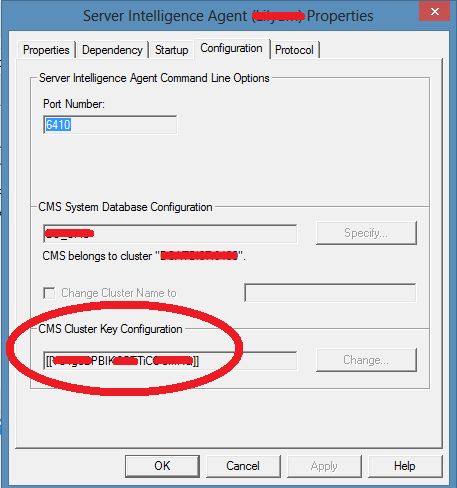
With this information your command should look like this;
reposcan.exe -dbdriver sqlserverdatabasesubsystem -connect "UID=sqluser;PWD=sqlpass;DSN=bo_cms;HOSTNAME=server_name\instance_name;PORT=1433" -dbkey [[XX1g0FVBi9VFBiCIAnAQ]] -inputfrsdir "C:\Program Files (x86)\SAP BusinessObjects\SAP BusinessObjects Enterprise XI 4.0\FileStore\Input" -outputfrsdir "C:\Program Files (x86)\SAP BusinessObjects\SAP BusinessObjects Enterprise XI 4.0\FileStore\Output"
After you run your batch file it creates a log file under "<INSTALLDIR>\SAP BusinessObjects Enterprise XI 4.0\reposcan". Open the xml files with your browser and you fill see the results.
List of inconsistency, by type, which can be found by RDT.
Inconsistencies between the CMS and the FRS:
- The object exists in the CMS database, but there is no corresponding file in the FRS.
- The file exists in the FRS, but there is no corresponding file in the CMS database.
- The size of the file does not match the InfoObject file size.
- The FRS folder is empty.
Inconsistencies in the CMS metadata:
- The object has a missing or invalid Parent Object ID.
- The object has a missing or invalid Owner Object ID.
- The object has a missing or invalid Submitter Object ID.
- The object's last successful instance is missing or invalid.
- The object references a calendar that doesn't exist.
- The preferred server does not exist.
- The event or events that this object is waiting on does not exist.
- This object triggers an event that does not exist.
- Orphaned Access Control entry.
- The preferred server does not exist.
- A specific user account has multiple favorites folders.
More information : http://wiki.sdn.sap.com/wiki/display/BOBJ/How+to+use+Repository+Diagnostic+Tool
For other databases and reposcan parameters refer to xi4_bip_repository_diagnostic_tool_en.pdf on SAP market.
Tweet
Thursday, February 21, 2013
BusinessObjects-Infoview freezes when click on "Document List"
You can find several solutions for this dummy situation. I never tried it but IE8 users solve this by setting their zoom ratio to %100 on their browser.
But i faced this problem on IE9 and the zoom trick didn't help me. I solved it by adding "about:blank" to the trusted sites on IE. Hope this helps you too.
Tweet
But i faced this problem on IE9 and the zoom trick didn't help me. I solved it by adding "about:blank" to the trusted sites on IE. Hope this helps you too.
Tweet
BusinessObjects-Merged Dimension Incompatible Object
Merging dimension is always a need by creating webi documents. But by default you can use only dimensions from one query, merged dimensions and the measures. If you want to use dimensions from other query and you can't merge them, you got an error message "Cannot drop here - the object is incompatible". See pic below.

To avoid this problem you have to create a detail variable object and associated it to the merged dimension. In the example above you want to use the phone numbers from Query2. Select the type as "detail" and associated object.

Now you can use this variable with your Query1 dimensions.

To understand why this works with detail please refer to this document:
http://michaelwelter.wordpress.com/2011/04/18/tips-for-merging-dimensions/
Tweet

To avoid this problem you have to create a detail variable object and associated it to the merged dimension. In the example above you want to use the phone numbers from Query2. Select the type as "detail" and associated object.

Now you can use this variable with your Query1 dimensions.

To understand why this works with detail please refer to this document:
http://michaelwelter.wordpress.com/2011/04/18/tips-for-merging-dimensions/
Tweet
BuisnessObjects-Order Prompts in Web Intelligence
If you use prompts which you have defined in your universe, you can't order them through Query panel in your web intelligence document.
To order your prompts you have to use the {user:n} parameter in your filter definition. n is the order number of the prompt and starts from 0.
Here is an example:
 On the query panel you see that the order of the prompts is ProductNumber, ProductName, ProductId.
After running the query you will see that the prompt order is like ProductId, ProductName, ProductNumber.
Take a look to the SQL script and you can see the definition of the prompts. They are like;
( SalesLT.Product.ProductNumber IN @Prompt('Enter values for Productnumber:','A','Productheader\Productnumber',Multi,Free,Persistent,,User:2) )
AND
( SalesLT.Product.Name IN @Prompt('Enter values for Product Name:','A','Productheader\Product Name',Multi,Free,Persistent,,User:1) )
AND
( SalesLT.Product.ProductID IN @Prompt('Enter values for Productid:','N','Productheader\Productid',Multi,Free,Persistent,,User:0) )
So, all you have to do is change the numbers of the end of your prompts.
Tip: If you parse your filter in universe you will get an error message like this:

Just ignore it.
Tweet
To order your prompts you have to use the {user:n} parameter in your filter definition. n is the order number of the prompt and starts from 0.
Here is an example:

After running the query you will see that the prompt order is like ProductId, ProductName, ProductNumber.
Take a look to the SQL script and you can see the definition of the prompts. They are like;
( SalesLT.Product.ProductNumber IN @Prompt('Enter values for Productnumber:','A','Productheader\Productnumber',Multi,Free,Persistent,,User:2) )
AND
( SalesLT.Product.Name IN @Prompt('Enter values for Product Name:','A','Productheader\Product Name',Multi,Free,Persistent,,User:1) )
AND
( SalesLT.Product.ProductID IN @Prompt('Enter values for Productid:','N','Productheader\Productid',Multi,Free,Persistent,,User:0) )
So, all you have to do is change the numbers of the end of your prompts.
Tip: If you parse your filter in universe you will get an error message like this:

Just ignore it.
Tweet
Tuesday, November 27, 2012
BusinessObjects-How to find which report is running from database session
Sometimes you see very large SQL expressions which are killing your database systems. With audit reports you can find which reports have run after they finished. But with this little code you can directly find the user, the report and the universe from your database directly on demand.
http://www.dallasmarks.org/blog/2011/10/tips-and-tricks-identifying-business-objects-queries-using-end_sql/
Just put this lines to your universe parameters "END_SQL" line:
/* @Variable('UNVNAME') - @Variable('BOUSER') - @Variable('DOCNAME') */
Thats it. Your query will look like this:

Your dba will appreciate you.
http://www.dallasmarks.org/blog/2011/10/tips-and-tricks-identifying-business-objects-queries-using-end_sql/
Just put this lines to your universe parameters "END_SQL" line:
/* @Variable('UNVNAME') - @Variable('BOUSER') - @Variable('DOCNAME') */
Thats it. Your query will look like this:

Your dba will appreciate you.
BusinessObjects-How to use Oracle hints in Universe
If you use an Oracle connection in your universe and put the tables from the table browser, you can't use hints with your table. You can use derived tables for use of Oracle hints.
But there is another way put hints to your queries. Just go to your universe. Create an object with your rule. For example:

There is a "1" at the end. Because BO puts a comma sign after each object by generating the sql. Therefore we put a dummy value.
Ok. Lets get a look after we export our universe and use the hint object. (Don't forget to use this object as the FIRST object in Webi)

But there is another way put hints to your queries. Just go to your universe. Create an object with your rule. For example:

There is a "1" at the end. Because BO puts a comma sign after each object by generating the sql. Therefore we put a dummy value.
Ok. Lets get a look after we export our universe and use the hint object. (Don't forget to use this object as the FIRST object in Webi)
Subscribe to:
Posts (Atom)
